> For the complete documentation index, see [llms.txt](https://docs.boomerangme.cards/llms.txt). Markdown versions of documentation pages are available by appending `.md` to page URLs; this page is available as [Markdown](https://docs.boomerangme.cards/mailings-and-other-services/how-to-create-and-send-a-mailing.md).
# How to create and send a mailing
Send sms and emails to your customers.
The new mailing section is located near the "Send Push" section.
In it you can create mailings to your clients by email and sms.
To make the mailing function available, you need to connect your messaging services in the settings: Twilio for SMS, and Mailgun, SMTP, or SendGrid for email.
Now let's go back to the mailing section and create mailing.
In actions select create mailing.
In the modal window enter the name of the mailing and select the type: email and/or sms.
Click "Create mailing".
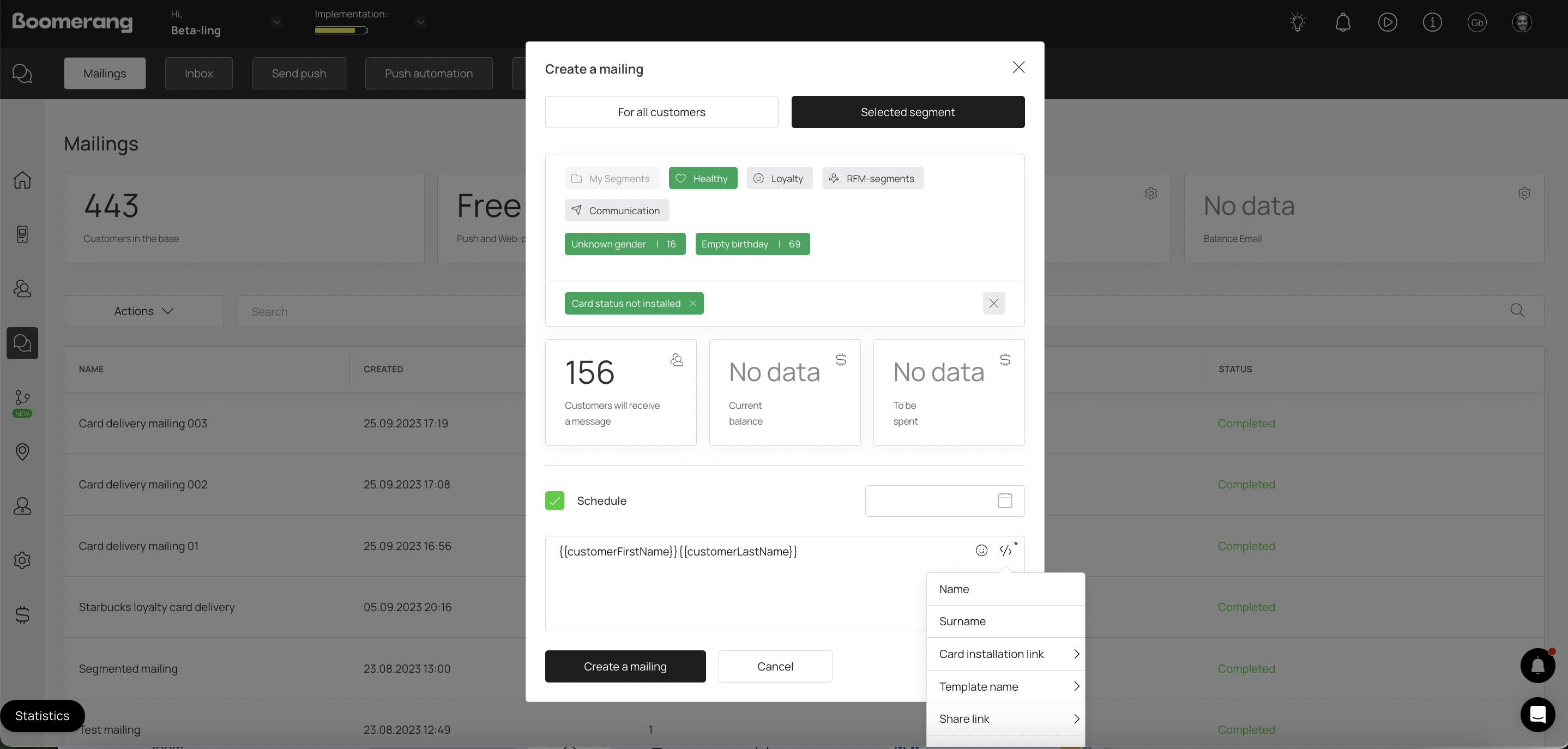
In the next window you can select the recipients of the mailing: it can be all your customers or only customers from a certain segment.
You can also send the mailing immediately after creation, or you can schedule it. To do this, you need to select the Schedule checkbox and choose the date and time of the mailing.
We can use emoticons and placeholders.
Placeholders allow you to make messages unique for each recipient. You can expand the placeholders sections and select the desired card.
### Personalized card install link in mailings
When creating a mailing, you can select a specific card template — the system will automatically include a personalized install link for that template in the message.
This is especially useful if your account has multiple loyalty programs (e.g., a stamp card and a cashback card). Instead of sending a generic install URL, you can target each customer with a direct link to install the specific card they don't have yet.
For example, if a customer already has a stamp card but hasn't installed your cashback card, you can create a mailing that includes a personalized install link specifically for the cashback card. This allows you to run targeted campaigns to cross-promote your loyalty programs and increase card adoption across your customer base.
When the text of the mailing is ready, click the "Create mailing". Now our mailing appears in the list.
To get detailed information click on the name of the mailing.
This page shows information about the mailing, as well as sending statuses for each recipient.
#### Mailing Templates
Boomerangme gives you full flexibility to compose your own mailing messages from scratch. You can create any text content, use placeholders for personalization, add emojis, and adjust the formatting to match your brand's tone and communication style. This way, every mailing you send is fully customized and reflects your brand's message.