> For the complete documentation index, see [llms.txt](https://docs.boomerangme.cards/llms.txt). Markdown versions of documentation pages are available by appending `.md` to page URLs; this page is available as [Markdown](https://docs.boomerangme.cards/cards-creation/stamp/how-to-set-up-a-stamp-card-with-multiple-rewards.md).
# How to Set Up a Stamp Card with Multiple Rewards
This article complements the [main guide on creating a stamp card](https://docs.boomerangme.cards/cards-creation/stamp) and explains the additional settings required if you want customers to **earn multiple rewards at different stamp milestones** and see those rewards directly in the card design.
#### Overview
A stamp card with multiple rewards allows you to set up step-by-step rewards and visually show customers which rewards they can earn and how many stamps are required for each one.\
Rewards are not granted automatically — they become available for redemption once the required number of stamps is collected.
***
### Card Design
To properly display multiple rewards, the card design must be configured correctly.
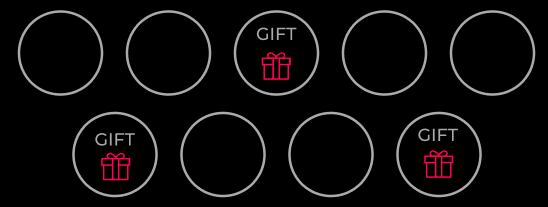
1. **Background under stamps**\
Prepare and upload an image that visually shows the rewards and the milestones at which they become available.\
For example: rewards for **3, 6, and 9 stamps**.
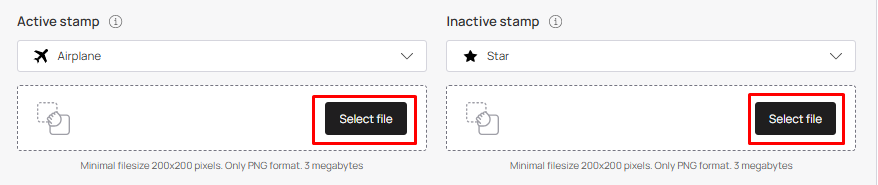
2. **Active stamp image**\
Upload an image for the active stamp — this is the stamp that appears when a customer earns a stamp.
3. **Inactive stamp image**\
Use a transparent image for inactive stamps so the background with upcoming rewards remains visible.
As a result, customers see a visual “reward roadmap” showing all upcoming rewards on the card.
### Reward Setup (Multi Rewards)
In the **Information** section, fill in the **Multi rewards** field.
Enter the stamp milestones separated by commas. At these milestones, the reward **becomes available to the customer for redemption**.\
Example: `3,6,9`.
### Terms of Use
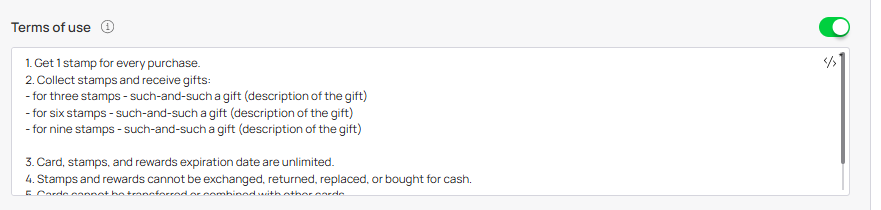
In the same section, use the **Terms of use** field to clearly describe:
* which reward is available at each stamp milestone;
* any conditions required to redeem the reward.
This information is always shown on the **back side of the card** and is available to the customer at all times.
### Important Notes
* The stamp card itself must be created using the [**main stamp card setup guide**](https://docs.boomerangme.cards/cards-creation/stamp).
* The steps described in this article are **additional settings** required only when using **multiple rewards**.
* Rewards are **not issued automatically** — they become available only after the customer collects the required number of stamps.